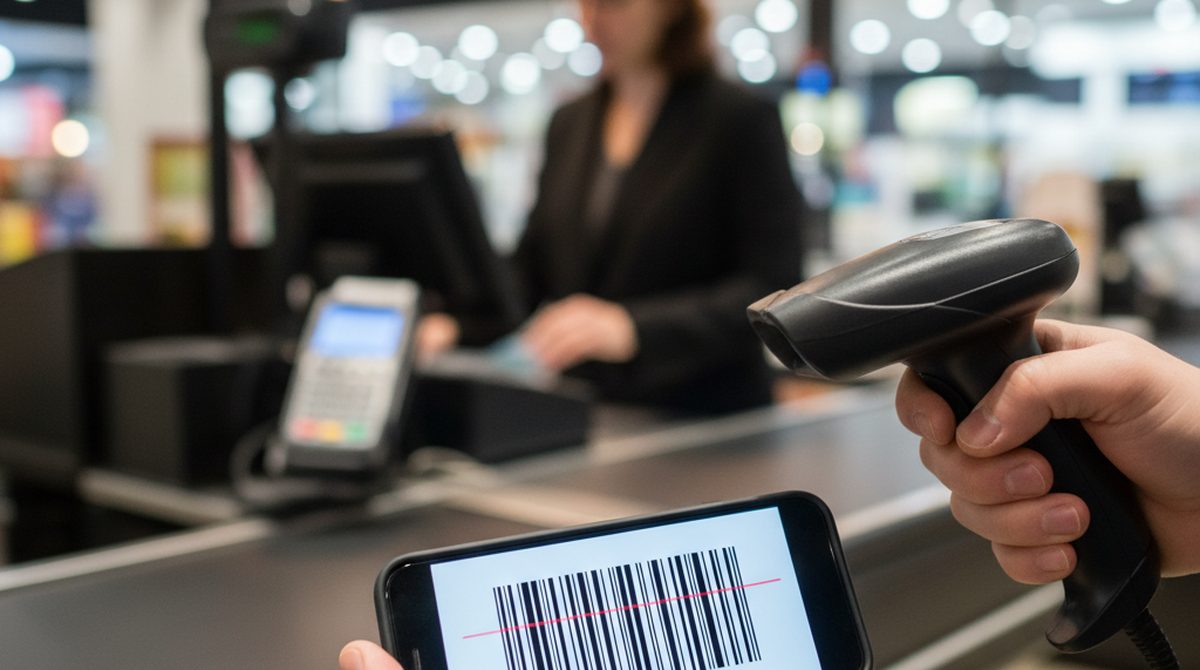
At the register, drugstore around the corner. I pull out my phone, open the wallet pass, hold it up to the scanner. Nothing. I move closer, tilt the screen, hold it still. Nothing. The cashier glances at my screen, then at me, and says: "Oh, that's a QR code, I need a barcode."
I built that pass myself. Source: a photo of the old plastic card. The barcode was on it, I typed the number into the wallet, picked QR — because QR looked more modern. That bought me nothing at the register. The scanner here only reads 1D codes, not 2D codes. And my QR is a 2D code.
The Misunderstanding
Most people think: "A barcode is a barcode." Actually, barcode is a whole family of formats — and they aren't interchangeable. The key distinction: 1D versus 2D.
- 1D codes are the classic stripe codes — vertical lines, one-dimensional. A laser scanner runs across them once, left to right, and reads the bars.
- 2D codes are square or rectangular and pack data in both dimensions. They need an image sensor (i.e. a camera, not a laser) that captures the whole picture at once.
Many register scanners are 1D-only. Others handle both. If you show a 2D code (QR, Aztec) to a pure 1D scanner, you have no chance — no matter how bright the screen.
The Six Formats You'll Actually See
Six formats cover almost everything that shows up in everyday life:
1. EAN-13 (1D) — The classic stripe code with 13 digits (12 data digits + 1 check digit). Groceries, books (as ISBN), consumer goods of all kinds. The "beep" at the supermarket checkout is almost always EAN-13 (or its US cousin UPC-A, with 12 digits).
2. Code 128 (1D) — Universal format for loyalty cards, logistics, shipping labels. Variable length, supports letters and numbers. Very common on loyalty cards — which is exactly where most people make mistakes when building a wallet pass.
3. QR Code (2D) — Square, holds a lot of data, readable by every smartphone camera. Concert tickets, boarding passes, marketing codes. But: many old register scanners can't read QR.
4. Aztec (2D) — Square like QR but more compact and resistant to damage. Common on European train tickets (Deutsche Bahn for example) and some boarding passes.
5. PDF417 (2D) — Stack format, wider than tall. Standard on US boarding passes and the back of every US driver's license (AAMVA standard). If you've ever had your ID scanned at a bar, that was PDF417.
6. Data Matrix (2D) — Very small, often on pharma packaging or industrial parts. Rare in everyday consumer life.
Which Format Do I Actually Need?
Rule of thumb: What was on the original card? Rebuild that exact format in your wallet.
| Use case | Typical format |
|---|---|
| Loyalty / store card | Code 128 or EAN-13/UPC-A — rarely QR |
| Concert / event ticket | QR (sometimes Aztec) |
| Boarding pass, US | PDF417 |
| Boarding pass, Europe | Aztec (sometimes QR) |
| Train ticket, Europe | Aztec |
| Driver's license, US | PDF417 |
| Self-made gift card | Code 128 or QR — both usually work |
Not sure? Take a photo of the original card and upload it to OtterWallet. The camera and image-recognition step detects the format automatically and uses the same one in the pass.
Common Mistakes Building Wallet Passes
From personal experience and what others have told me:
QR instead of 1D for loyalty cards. Classic. You build the pass, pick QR because QR looks cool — and the register scanner only reads 1D.
EAN-13 with the wrong number of digits. EAN-13 has exactly 13 digits (UPC-A has 12). If your customer number has 11 or 14 digits, that's not a valid EAN-13. Use Code 128 instead — it accepts variable lengths.
Code 128 with special characters. Code 128 supports letters and symbols, but if the cashier system expects pure digits, letters or symbols can confuse the workflow.
Just guessing the format. If the plastic card is gone, for example because all you have is an emailed code: pick Code 128. It works in roughly 90 percent of register systems.
What to Do When the Code Won't Scan
It happens. Even with the right format. The fixes that almost always work:
- Read the number underneath the barcode. Most cards print the customer number as plain text right under or next to the code. Just say it out loud — the cashier types it in manually, and that works in every system.
- Crank up screen brightness. Apple Wallet does that automatically when you open a pass. Other apps don't. Push it to 100 percent manually, then try again.
- Wipe the screen. Greasy smudges scatter the laser. A quick wipe on your sleeve is often enough.
- Try the other code on the card. Some passes have multiple codes (a QR and a 1D, for example). Show the other one.
- Zoom the wallet pass. On Apple Wallet, you can pinch-to-zoom the code with two fingers.
Bottom Line
Barcode format is a small dial with a big effect. Pick the right one when building your wallet pass and you almost never have problems at the register. Pick QR for everything and you'll fail regularly — because the drugstore scanner was probably built in 1996 and only knows 1D.
The takeaway rule: whatever was on the plastic card, that's what you pick in the wallet. Do that and you've eliminated the most common wallet-pass mistake.