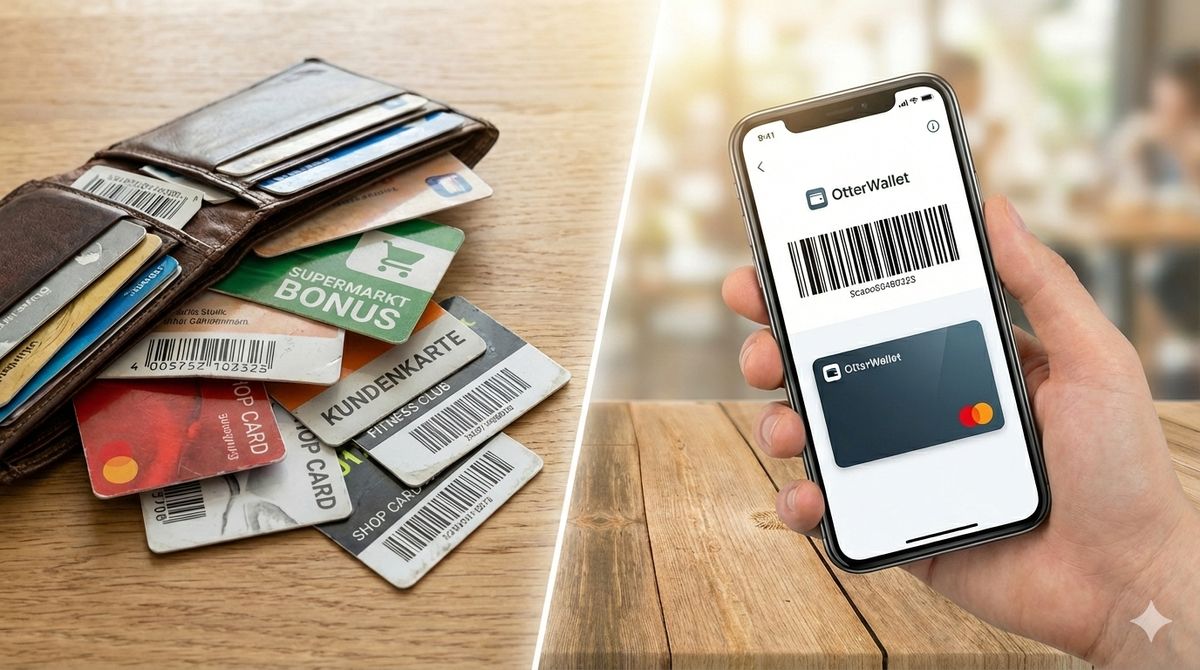
Eleven plastic cards. That's how many loyalty cards I had in my wallet two years ago — drugstore, grocery, the gym, the library. Half of them I never had with me when I needed them. And on at least three, the barcode was so worn that the cashier had to type it in manually.
At some point, I started digitizing all of them. Today I carry zero plastic cards. What I learned along the way — about barcode formats, checkout systems, and the quirks of Apple and Google Wallet — I'm sharing here.
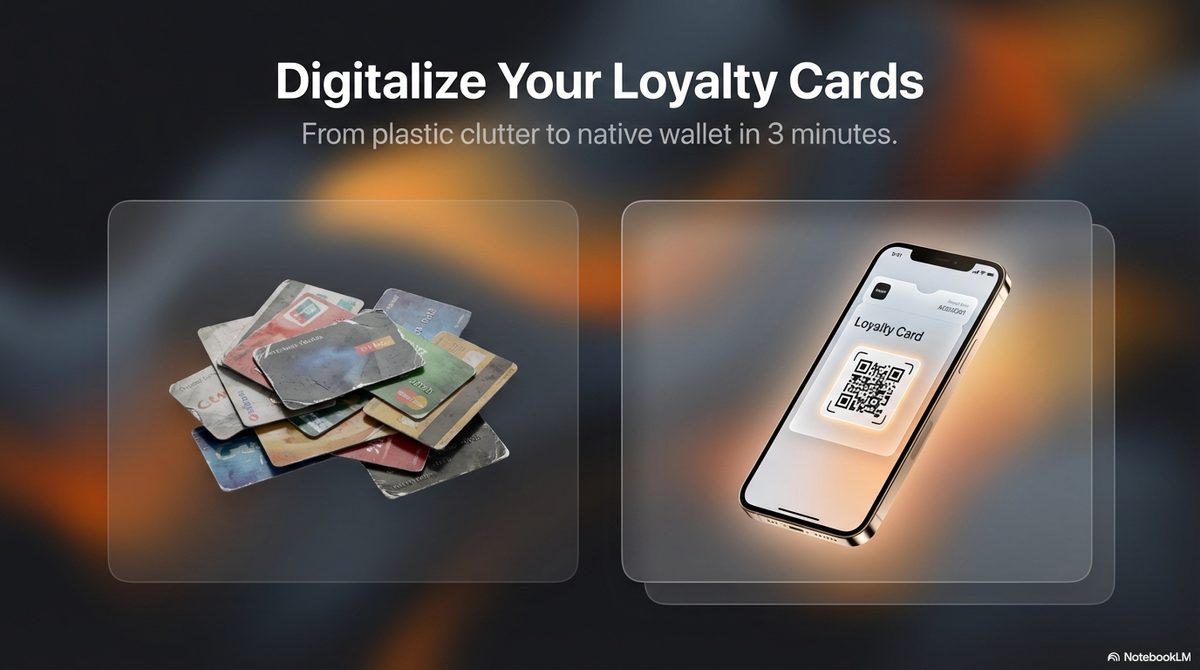
The Problem with Plastic Loyalty Cards
Let's be honest: plastic loyalty cards are a relic from the 90s. The idea was solid — show a card, collect points, get discounts. But the execution has some real weaknesses.
The barcode wears out. Loyalty cards live in wallets, get bent, rubbed, wet. After a few months, the barcode is often so damaged it won't scan at checkout. That leads to annoyed manual entry — or the classic "Do you have the app?"
You never have them with you. According to an EY study (2025), nearly half of all consumers are enrolled in more than five loyalty programs. But who carries all those cards around? Most people have 3-4 on them at best. The rest stay at home — exactly when you're standing at the register.
Privacy irony. Many loyalty card apps demand location access, push notifications, and a user profile. To check your rewards points, you're giving the company more data than necessary. A digital card in your wallet needs none of that.
What Actually Happens When You Scan?
Before digitizing your loyalty card, it helps to understand what happens at checkout. The register doesn't read "your card" — it reads a string of characters from the barcode.
That string is your membership number. Whether it comes from a plastic card, a smartphone screen, or a printed sheet of paper — as long as the number is correct and the barcode format matches, the scan works.
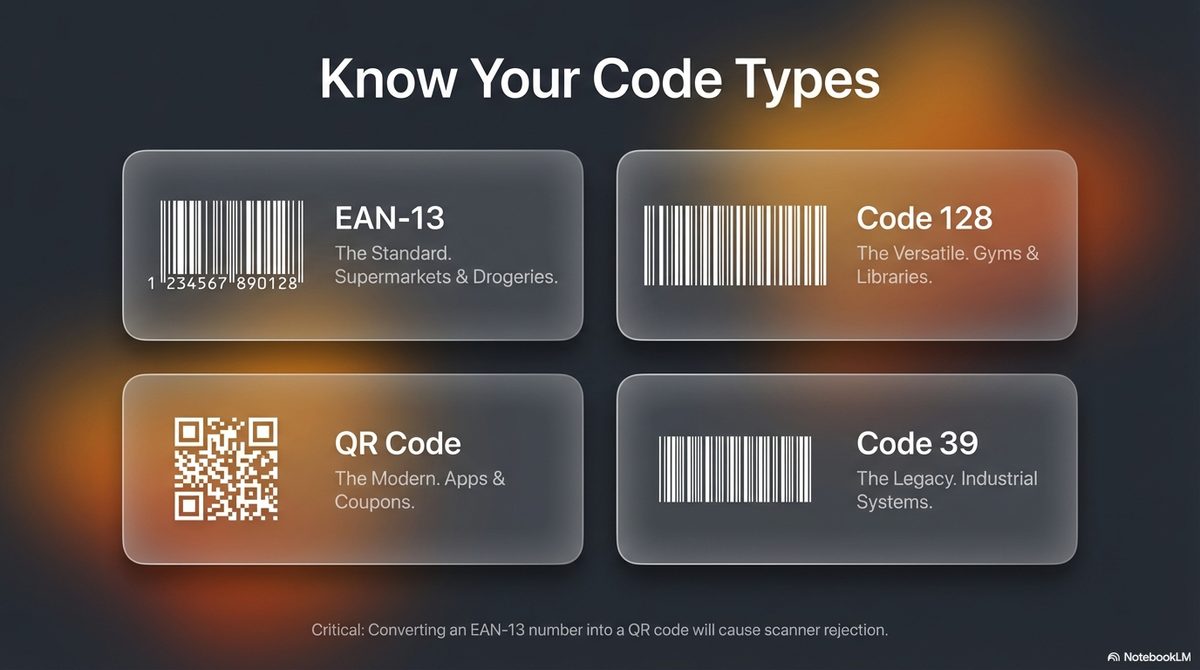
Common Barcode Formats on Loyalty Cards
| Format | Typical Use | Appearance |
|---|---|---|
| EAN-13 | Grocery stores, drugstores | Classic lines, 13 digits |
| Code 128 | Gyms, libraries, many retailers | Lines, any characters possible |
| QR Code | Newer systems, apps, coupons | Square pixel pattern |
| Code 39 | Older systems, industrial cards | Lines, letters + digits |
Important: The format must match exactly. If your plastic card has an EAN-13 barcode and you turn it into a QR code, the checkout system can't match the card — even if the number is identical. The scanner expects a specific format.
This sounds more complicated than it is. In practice, the format is detected automatically when you scan the barcode with your camera. You only need to be careful when typing the number manually — then you also need the right format.
Apple Wallet vs. Google Wallet — the Differences
Both platforms can store loyalty cards, but they handle it differently:
Apple Wallet (iPhone)
- Cards are stored as
.pkpassfiles in the Wallet - Quick access via double-click on the side button
- Syncs via iCloud — cards automatically appear on Apple Watch
- Supports 4 barcode formats: QR, Aztec, PDF417, Code 128
Google Wallet (Android)
- Cards are stored via your Google account
- Access through the Google Wallet app or lock screen
- Automatically available on all Android devices with the same account
- Supports 10 barcode formats, including EAN-13, EAN-8, and Data Matrix
A detail that's often overlooked: Google Wallet supports more barcode formats than Apple Wallet. If your loyalty card has an EAN-13 barcode (very common at grocery stores), you can store it natively as EAN-13 on Google Wallet. On Apple Wallet, you need to use Code 128 instead — which works in practice because most checkout systems can read both formats.
Three Ways to Digitize Your Loyalty Card
Way 1: The Retailer's Official App
Many stores offer their own apps — Starbucks Rewards, Target Circle, Walgreens. Advantage: You get extra features like coupons and point balances. Disadvantage: A separate app for each card with its own login, notifications, and storage footprint.
If you only have 2-3 loyalty cards and use the extra features, this works. With 8+ cards, it gets impractical.
Way 2: Multi-Card Apps
Apps like Stocard (now part of Klarna) collect all cards in one place. Better than individual apps, but with limitations: cards live only inside that app, not in your native wallet. And you're sharing your shopping data with a third party.
Way 3: Straight to Your Wallet
The leanest approach: save the loyalty card as a native pass directly in Apple or Google Wallet. No app download, no login, no data transfer to third parties. The card just sits in your wallet next to your bank card.
That's exactly what we built OtterWallet for. You scan the barcode from your existing card (or type in the number), and get a wallet pass you can load directly onto your phone. The format is detected automatically and reproduced 1:1.
Practical Tips from Experience
After digitizing several hundred cards (our own and the ones users have created through OtterWallet), a few things stood out:
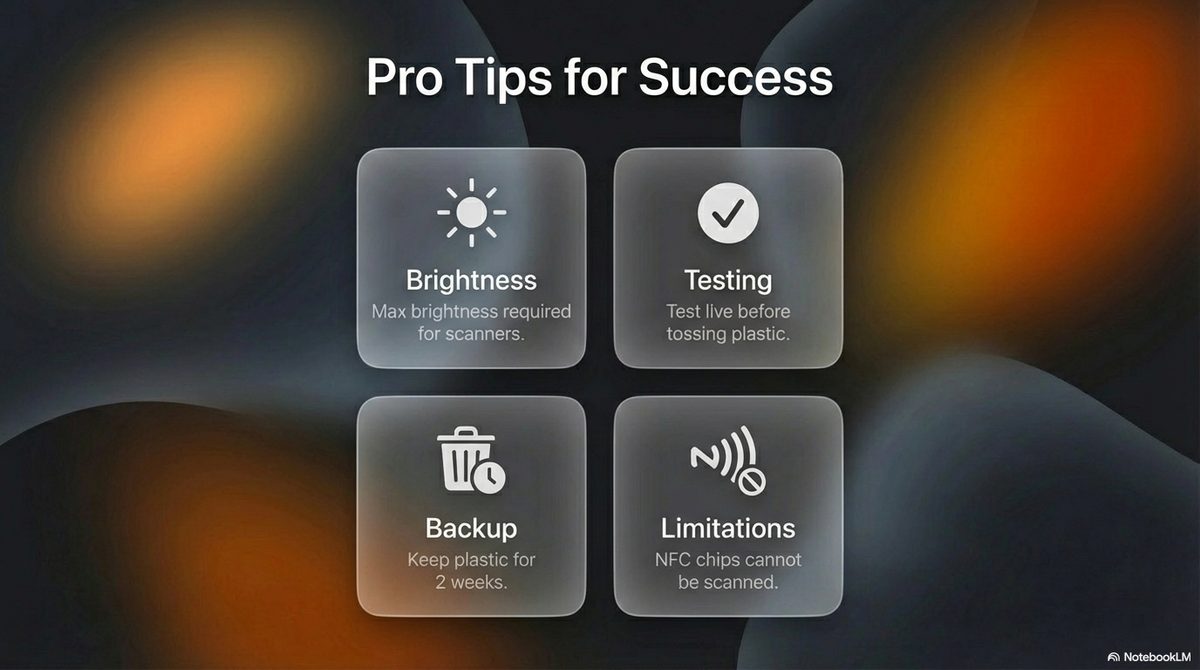
Scan with the camera rather than typing manually. Camera scanning detects the barcode format automatically. Manual entry requires you to choose the format yourself — and if you pick EAN-13 instead of Code 128, the register won't scan it.
Test the digital card on your next shopping trip. Don't create it at home "in advance" and hope it works. Create the card, go shopping, hold your phone up to the reader. 95% of the time it works immediately. When it doesn't, it's almost always the wrong barcode format.
Turn up screen brightness. Barcode scanners need contrast. If your display is at 30% brightness, the scanner sometimes can't read the barcode. Apple Wallet automatically maximizes brightness when you open a card — with Google Wallet, you may need to do it yourself.
Don't throw away the plastic card right away. Keep it for a few weeks as backup until you're sure the digital version works everywhere. After that, feel free to toss it.
Which Cards Work — and Which Don't?
Works reliably:
- Grocery store loyalty cards
- Drugstore cards
- Hardware store cards
- Bookstore and library cards
- Gym membership cards
- Club membership cards with barcodes
May have limitations:
- Cards with NFC chips (e.g., some access cards) — the chip can't be digitized, but the barcode on the card can
- Cards without a visible barcode — if the card only works via magnetic stripe, it can't be represented as a wallet pass
- Cards with dynamic codes — some apps generate a new barcode each time. These can't be permanently stored
Bottom Line
Digital loyalty cards aren't a tech gimmick — they're a practical simplification. Less plastic in your wallet, faster access at checkout, and no more worn-out barcodes. Whether through a retailer's app, a multi-card app, or directly in your wallet — the switch is worth it as soon as you carry more than two or three cards around.
The numbers speak for themselves: according to Juniper Research (2025), 4.4 billion people worldwide already use digital wallets — and the number is expected to exceed 6 billion by 2030. Over 80% of consumers say they're willing to use a mobile app for loyalty programs (EY, 2025). The trend is clear: the smartphone is replacing the wallet. The question isn't whether, but when.