
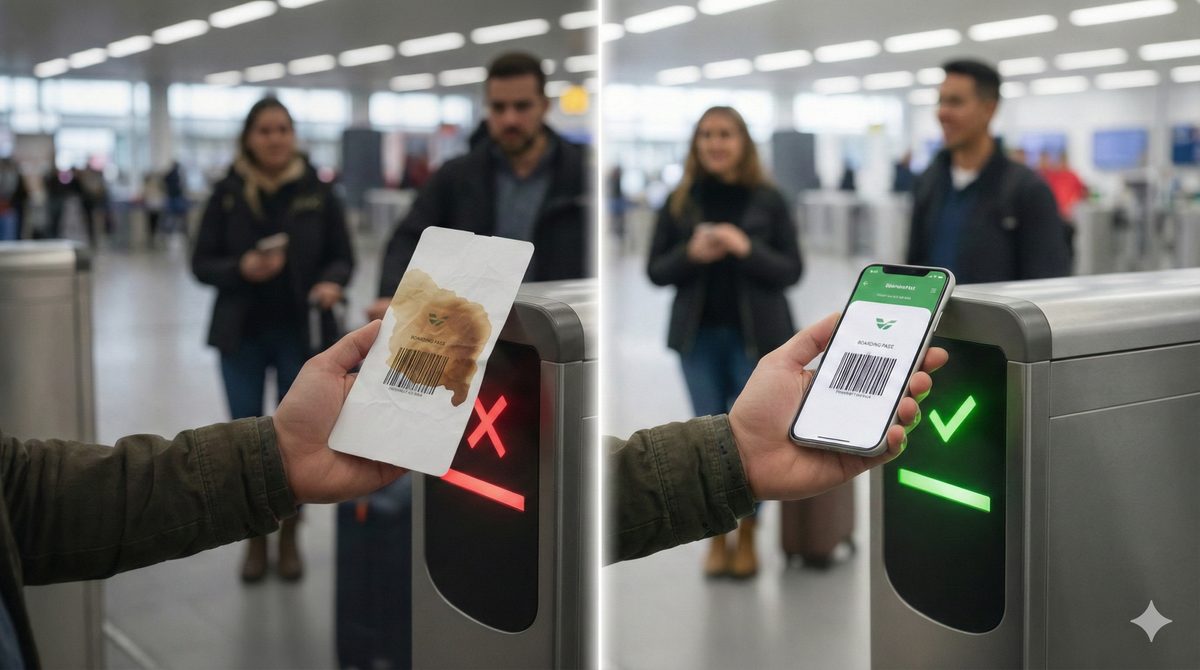
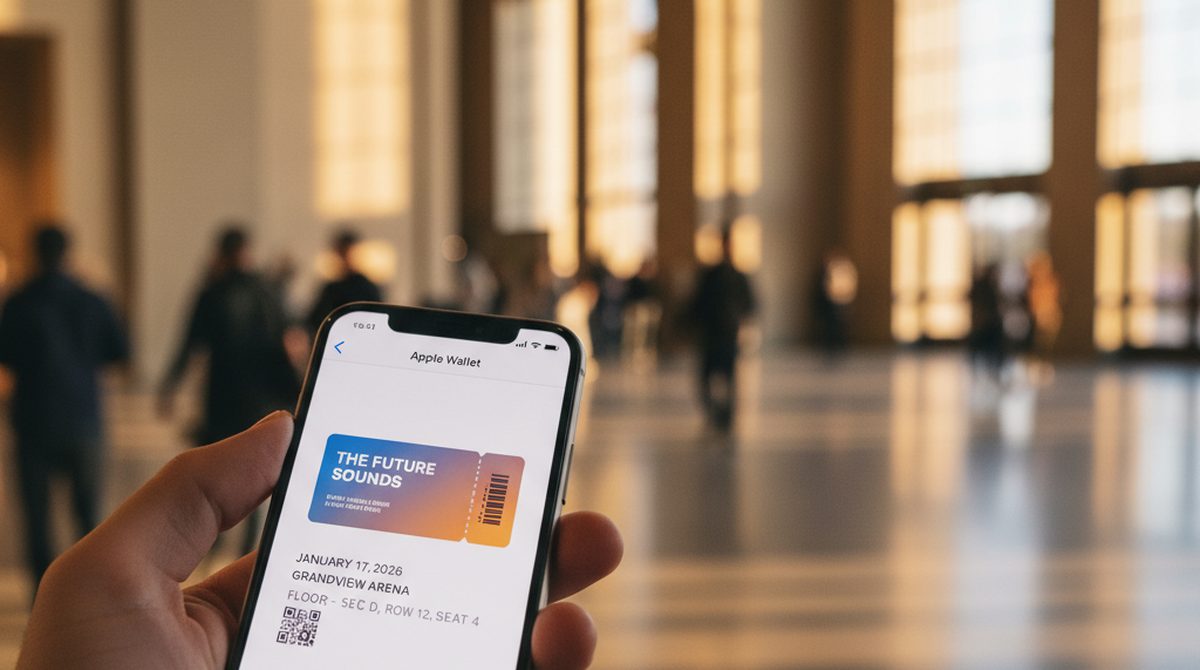
You bought concert tickets. The vendor sent an email. Or a PDF. Or it routed through Ticketmaster. The "Add to Apple Wallet" button is supposed to be there somewhere — but you can't find it, or you found it and tapped, and nothing happened. The show is in two hours.
There are four real scenarios for adding a ticket to Apple Wallet, and each has its own quirks. Here is the complete 2026 guide — every path, plus what to do when the path breaks.
Add Tickets to Apple Wallet — the 30-second answer:
- From email: look for "Add to Apple Wallet" or a
.pkpassattachment. Tap it.- From a PDF: if the PDF has an embedded "Add to Apple Wallet" button, tap it. If not, you cannot directly add the PDF — but you can extract the QR/barcode and add a manual pass (we walk through this).
- From Ticketmaster: open the ticket in the Ticketmaster app or email, tap "Add to Apple Wallet" near the barcode.
- Manually: if all else fails, screenshot the barcode, open Apple Wallet, tap +, and add a Generic Pass with the code. Or use a tool like OtterWallet to make a proper signed pass from the same barcode.
Add a Ticket From an Email
The most common scenario, and the easiest when it works.
- Open the email on your iPhone (Mail, Gmail, or whatever you use).
- Look for one of two things:
- An "Add to Apple Wallet" button — typically a black pill-shaped button. Tap it.
- A
.pkpassattachment — usually shown at the bottom of the email. Tap the attachment.
- Apple Wallet opens with an "Add to Wallet" preview sheet. Tap Add in the top right.
That's it. The ticket lives in Apple Wallet until expiry and surfaces on your lock screen at the right time.
If the button does nothing: you might be on an older iOS that does not support the issuer's pass version. Update iOS to the latest. Failing that, contact the issuer for a re-issue or fall back to manual add (below).
Add a Ticket From a PDF
This is where most readers get stuck. Not every PDF ticket can become a Wallet pass.
Two cases:
Case A — the PDF contains a "Save to Wallet" link
Many vendors (especially in 2025–2026) embed an "Add to Apple Wallet" link directly in the PDF. Open the PDF on your iPhone, scroll, look for a black Apple Wallet badge or the words "Add to Apple Wallet." Tap. Same flow as the email scenario.
Case B — the PDF only has the barcode/QR and no link
This is the harder case. A PDF on its own cannot become a Wallet pass natively — Apple Wallet does not "convert" PDFs. You have two options:
- Manual add (built into iOS): screenshot the barcode/QR, open Apple Wallet, tap + in the top right, choose Generic Pass or scan the QR with the camera. Apple Wallet creates a basic pass with the code. Limitations: no logo, no event metadata, no lock-screen surfacing.
- Generate a proper pass yourself: upload the QR/barcode to a wallet creator like OtterWallet, customize the title and colors, and download a signed
.pkpass. The result looks like a "real" Wallet pass and behaves like one (lock-screen, expiry, etc.). Pricing as of April 2026: €0.99 (~$1.05) per pass.
Option 2 is overkill for a single show — but it is the right choice when you have repeat events, multiple tickets, or you care about presentation.
Add a Ticket From Ticketmaster
Ticketmaster handles a huge share of US/global event ticketing, and their Wallet flow has its own pattern.
- Open the Ticketmaster app (or the email with your tickets).
- Tap the event, then tap the specific ticket you want.
- The ticket screen shows the barcode at the top and an Add to Apple Wallet button below.
- Tap the button. Apple Wallet opens. Tap Add.
Common quirks:
- The button is missing. Ticketmaster occasionally hides the button if the venue has not enabled wallet-pass support. In that case, the only option is to use the Ticketmaster app at the gate (which is what most venues now expect anyway).
- The pass updates dynamically. Ticketmaster pushes seat changes, gate changes, and time changes to the wallet pass automatically — that is one of the reasons the pass is bound to their backend rather than a static file.
- Multiple tickets. Each ticket adds individually. If you have four seats, expect four separate Wallet entries.
For an iPhone-to-iPhone transfer, see Ticketmaster's transfer feature inside the app — Apple Wallet itself does not transfer event tickets between accounts.
Manually Add a Ticket (When There's No Add-to-Wallet Button)
The fallback path, built into Apple Wallet itself. Useful when the issuer never offered a Wallet version.
- Open Apple Wallet on your iPhone.
- Tap the + icon in the top right.
- Choose Scan Code (or "Add Generic Pass" depending on iOS version).
- Either scan the QR/barcode through the camera or import a screenshot.
- Apple Wallet creates a basic pass.
What you get: a minimal pass with the scannable code.
What you do not get: logo, branding, event title, expiry alerts, or location triggers. The pass is functional at the gate but plain.
For more polish — title, event branding, expiry — generate a proper signed pass with a wallet creator. See our Wallet Creator guide.
Troubleshooting — When You Can't Add the Ticket
A short list of why it might not be working.
Apple Wallet says "not supported"
The issuer's .pkpass file is malformed or signed with an expired certificate. Contact the issuer for a re-issue. There is no user-side fix.
The .pkpass attachment opens in the browser, not Wallet
Long-press the attachment, choose Open in Wallet, or share it to Wallet manually.
Older iPhone or older iOS
Apple Wallet requires iOS 6 or later (for .pkpass). For new pass features (like dynamic updates), iOS 12+ is recommended. If you are on an older iOS, update first.
Your venue uses an older or unusual barcode standard
Most venues use Code 128 or QR. A few legacy venues use Aztec or PDF417 (airline boarding passes especially). Apple Wallet supports all four — but if the issuer's pass was generated incorrectly (wrong barcode type), the pass adds but won't scan. Contact the issuer.
The Wallet button shows up but nothing happens after tap
This is usually an iOS bug or a corrupted Wallet preference. Restart the iPhone, then try again. If still broken, sign out of iCloud Wallet (Settings → Wallet & Apple Pay → sign out) and back in.
Pro Tip — Generate Your Own Pass When Theirs Doesn't Work
If a vendor sent you a barcode but no proper Wallet pass — or the pass they sent is unreliable — make your own. Browser tools like OtterWallet turn any barcode/QR into a signed .pkpass in under a minute. The pass looks branded (your title, color, logo), surfaces on your lock screen, and works the same as any vendor-issued pass at the gate.
Pricing as of April 2026: €0.99 ($1.05) for a single pass, €1.99 ($2.10) for ten. No account, no subscription, browser-based.
This works because the gate scanner only reads the barcode — it does not care which signing key produced the pass. As long as the barcode itself is valid (it is, since it came from the original ticket), your homemade Wallet pass will scan.
Make a wallet pass from your ticket barcode →
FAQ
How do I add a PDF ticket to Apple Wallet?
If the PDF has an embedded "Add to Apple Wallet" button, tap it. If not, screenshot the barcode and use Apple Wallet's manual "Scan Code" flow, or generate a signed pass with a wallet creator.
How do I save a PDF boarding pass to my Wallet?
Most airlines now embed a "Add to Apple Wallet" link in the boarding-pass email. If yours doesn't, contact the airline — most have a Wallet version available on request. Manually adding a boarding pass via screenshot works for the barcode but loses gate-change updates.
How do I manually add tickets to Apple Wallet?
Open Apple Wallet, tap + in the top right, choose Scan Code, and either scan or import the barcode/QR. Apple Wallet creates a basic generic pass.
Why can't I add tickets to Apple Wallet?
Common causes: (1) the issuer doesn't support Apple Wallet, (2) the .pkpass file is malformed or expired, (3) your iOS is too old, (4) a temporary iOS bug — restart and try again.
How do I add Ticketmaster tickets to Apple Wallet?
Open the Ticketmaster app, tap the event, tap the ticket, then tap Add to Apple Wallet below the barcode. If the button is missing, the venue has not enabled Wallet support and you have to use the Ticketmaster app at the gate.
Can I transfer tickets between Apple Wallets?
For event tickets: usually no — they're often bound to the original Apple ID. Use the issuer's transfer feature (Ticketmaster, AXS, etc.) instead. For static loyalty passes and gift cards: copy the original .pkpass file and add it on the second device.
Can I add a screenshot of a ticket to Apple Wallet?
Indirectly. Apple Wallet's "Scan Code" flow can read a screenshot's barcode and create a generic pass. The result is plain (no branding) but functional at the gate.
Your Tickets, Where They Should Be
Four scenarios, four answers:
- From email: tap "Add to Apple Wallet" or the
.pkpassattachment. - From PDF: tap the embedded link if it has one; otherwise extract the barcode and add manually or via a wallet creator.
- From Ticketmaster: in the app or email, tap "Add to Apple Wallet" below the barcode.
- Manually: Wallet → + → Scan Code.
When none of those work, the fallback is to generate a fresh pass from the barcode yourself. Browser tools like OtterWallet handle that in a minute.
Make a wallet pass from any ticket barcode →
More articles