
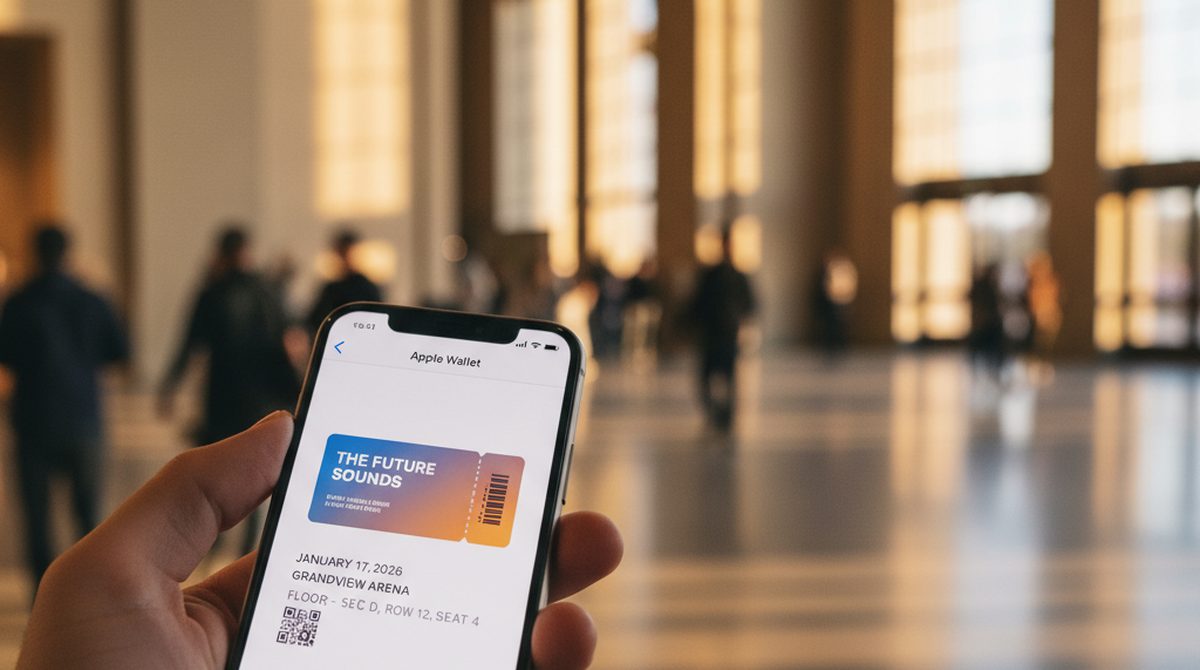
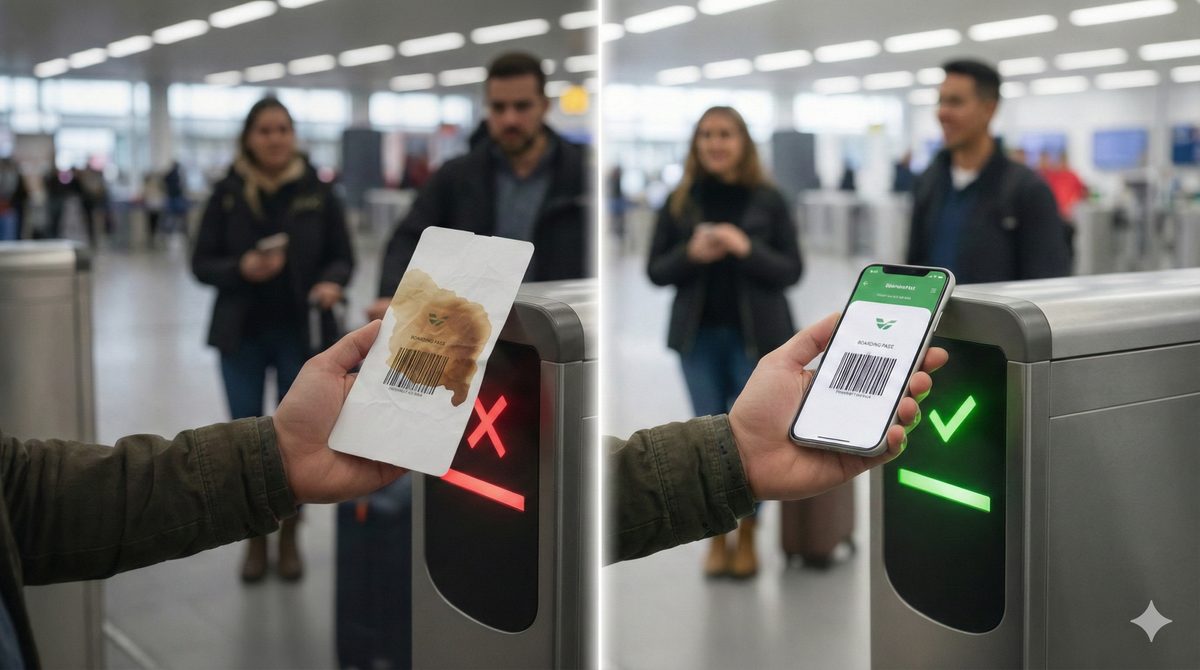
Has this ever happened to you? You're standing at the gate, boarding has started, and you've got your boarding pass as a PDF on your phone. You opened it ahead of time, zoomed into the barcode, cranked up the brightness. You hold the screen up to the scanner. Nothing. Try again. Red beep. The gate agent takes your phone, tilts it around, tries herself. Behind you, people sigh.
A friend told me exactly this story — on a domestic flight. His PDF boarding pass wouldn't scan at the gate. The agent ended up checking him in manually and waving him through. He got on, but the stress was real. And he wasn't the only one in line with scanning problems.
Why Paper and PDF Fail at the Gate
The reasons are surprisingly mundane:
Printers and ink. Anyone who prints their boarding pass at home is at the mercy of their printer's quality. Too little ink, a slightly blurry barcode, a crease in the wrong spot — and the scanner reads nothing.
Screen brightness. Barcode scanners work with infrared or laser. They need high contrast on the screen. If the display is at 30 or 40 percent — the default on many phones — the contrast often isn't enough. Especially on older or budget devices with dimmer screens.
Cracked screens. A detail few people think about: spider-web cracks on a display scatter the scanner's laser beams. The barcode becomes unreadable for the scanner — even though it looks perfectly fine to the human eye.
PDF zoom issues. Showing a barcode from a PDF on a phone screen means zooming in, finding the right section, and holding the phone steady. That's three failure points at once.
The Silent Nightmare: Scan Failures with Consequences
What many people don't know: a failed scan at the gate can cause more than just stress. There are documented cases where passengers were registered as "no-shows" in the system — because the gate agent waved them through after a failed scan, but the scan never registered in the system. The result: their return flight was automatically cancelled because the airline assumed the passenger never boarded.
That's an extreme case, but it illustrates the problem: a PDF at the gate is a fragile chain of "let's hope this works."
What a Wallet Pass Does Differently
A boarding pass in Apple or Google Wallet works fundamentally differently than a PDF:
Automatic brightness. Apple Wallet maxes out screen brightness the moment you open a pass. No manual adjustment, no "hang on, let me turn up the brightness."
Instantly accessible. On iPhone: double-click the side button. On Android: through the lock screen. No app to open, no PDF to find, no zooming in.
Optimized barcode. The barcode in a wallet pass is natively rendered — not embedded as an image in a PDF. It's always displayed at the optimal size and resolution.
No paper needed. No printer, no ink, no paper. And no crease that destroys the barcode.
Airlines Are Catching On
The trend is clear: airlines are moving away from paper.
Ryanair eliminated paper boarding passes entirely from November 2025 — one of the first major airlines to do so. Over 98 percent of passengers were already using digital passes before the mandate. The airline saves over 300 tonnes of paper per year.
American Airlines disabled automatic boarding pass printing at kiosks — 12.5 million fewer printouts per year, saving $175,000.
According to the IATA Global Passenger Survey 2025, 61 percent of all air travelers prefer mobile boarding passes. 78 percent want a smartphone that combines digital wallet, passport, and loyalty programs.
But Not Every Airline Offers Wallet Passes
Major airlines like Lufthansa, Emirates, or British Airways offer their own wallet integrations through their apps. But many smaller airlines, charter operators, and low-cost carriers still send PDFs by email. Some have an app but without wallet export.
That means: you get a PDF, and from there you're on your own.
That's exactly what OtterWallet is for. You open the site, scan the barcode from your PDF boarding pass with the camera or upload the PDF directly. The barcode is reproduced 1:1 — same format, same content. The result is a native wallet pass sitting right next to your bank card.
Still: Don't Skip the Backup
The wallet pass is the most convenient option at the gate. But when it comes to flying: better safe than sorry. Phones get stolen, lost, dropped in toilets, or run out of battery at the worst possible moment. All of this has happened.
My advice:
- Create a wallet pass — that's your primary boarding pass at the gate
- Keep the PDF on your phone — don't delete it, save it in an offline-capable app (Files, Downloads, whatever works)
- Print it out and put it in your travel documents — a sheet of paper weighs nothing and can save your flight in the worst case
Sounds like overkill? Maybe. But anyone who's ever stood at the gate with nothing to show will disagree. The wallet pass gives you convenience, the PDF and printout give you security. Both together is the best combination.
Bottom Line
A PDF boarding pass is better than none. But it's vulnerable to exactly the problems that cause the most stress at the gate: poor contrast, wrong zoom level, scanner failures. A native wallet pass bypasses these issues — automatic brightness, instant access, optimized barcode.
The industry is moving: 60 percent of travelers worldwide already use mobile boarding passes. With nearly 5 billion air passengers per year, an estimated 2 billion paper boarding passes are still printed. But the trend is clear — and if you don't want to wait for every airline to offer wallet passes, you can help yourself in two minutes.
