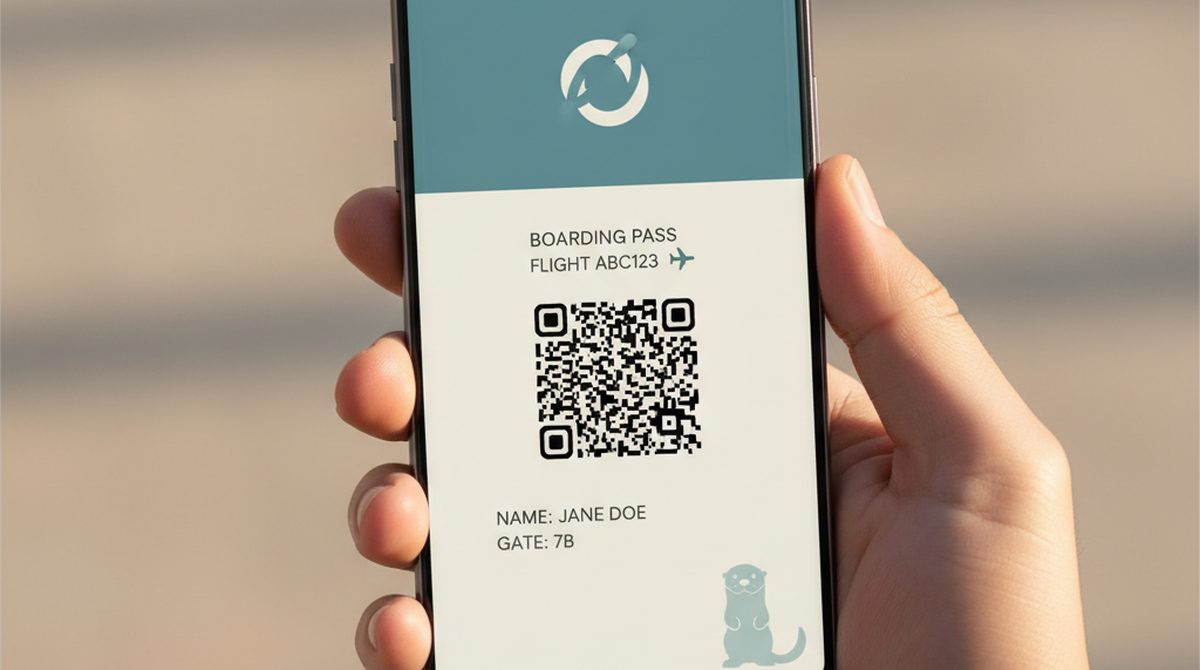
Standing at the gate, boarding pass printed, scanner rejected. You glance at the email. There it is — a tiny button: Add to Apple Wallet. Except your phone is a Pixel. Or a Samsung. What now?
Short answer — yes, Android absolutely supports wallet passes. You have three options in 2026, and which one you use depends on what you are trying to do. Here is the full picture.
Android Wallet Pass — the 30-second answer:
- To view an existing pass (boarding pass, ticket, loyalty card from a company): use Google Wallet (native, pre-installed on most Android phones) or install a
.pkpassreader like PassWallet or WalletPasses.- To create your own pass (from a QR code, barcode, or image): use a browser-based pass creator like OtterWallet — no coding, no signup.
- Samsung phones ship with Samsung Wallet alongside Google Wallet — either works for most use cases on a Galaxy.
This guide walks through all three options end-to-end, plus the "how do I create a pass myself?" angle that almost no one explains for non-developers.
What is a Wallet Pass?
A wallet pass is a small digital file your phone can store and display — a boarding pass, an event ticket, a loyalty card, a gym membership. Two main formats exist in 2026:
- Apple's
.pkpassis the original, introduced with Apple Wallet (formerly Passbook). It is a zipped bundle of JSON metadata, images, and a signed manifest. The format dates back to 2012 and is what most "Add to Apple Wallet" buttons produce. - Google Wallet's pass format is JWT-based. Instead of shipping a file, the issuer creates a signed token and Android opens it as a wallet object. It is the newer approach and the default on Android.
Both formats encode roughly the same things: a barcode or QR, a title, a logo, expiry information, and (optionally) a location trigger so the pass surfaces on your lock screen when you walk into the right venue. Where they diverge is the delivery mechanism — and that is exactly what makes Android wallet-pass usage feel inconsistent.
If you want a deeper primer on the format, see our Wallet Pass Explained post. Here we focus on the Android-specific mechanics.
Option 1 — Use Google Wallet (the default Android way)
Google Wallet ships pre-installed on most modern Android devices and is the path of least resistance for almost anything you would have used Apple Wallet for on an iPhone.
What Google Wallet supports natively:
- Payment cards (debit, credit, prepaid)
- Public-transit tickets in supported regions
- Event tickets from partner ticketing platforms
- Boarding passes from supported airlines (most major US and international carriers)
- Loyalty programs from supported retailers
- Driver's licenses and state IDs in a small but growing set of US states (still rolling out — see TSA's mobile-ID list for current participation)
- Gift cards and store credit
What it does not support: arbitrary .pkpass files. If a website hands you a .pkpass file with no Google Wallet alternative, Google Wallet will not open it.
How to add an Apple Wallet pass to Google Wallet
There is no single universal answer — it depends on how the pass was issued.
- Method A — the "Save to Google Wallet" button. This is the cleanest path. If the issuer (your airline, ticket vendor, retailer) supports Google Wallet, the email or web page will offer a separate "Save to Google Wallet" button next to the Apple one. Tap it, sign in once if prompted, and the pass is added.
- Method B — scan the QR or barcode manually. If you have the printed pass or a screenshot of the barcode, open Google Wallet, tap the + icon, choose "Pass" or "Other," and let Google Wallet read the barcode through the camera. This works for many simple loyalty and gift cards but not for passes that rely on signed metadata (boarding passes typically do).
- Method C — use a converter. A handful of third-party services attempt to convert
.pkpassto a Google Wallet object. Quality varies. Even when conversion technically succeeds, signed boarding passes often refuse to validate at the gate because the signature was tied to the original.pkpassissuer. Use this method for low-stakes passes (loyalty cards), not for travel.
Honest limitation: many older .pkpass files were issued before Google Wallet was a meaningful target, and the issuer never set up a Google equivalent. In that case, jump to Option 2.
Option 2 — Use a .pkpass Reader App (PassWallet / WalletPasses)
When Google Wallet refuses to open a .pkpass file you actually need, the fix is a dedicated reader app. The two most established are PassWallet and WalletPasses, both available for free on Google Play.
Step-by-step
- Open the Play Store and install PassWallet or WalletPasses. Either works; the one you pick is largely cosmetic.
- Find the email or message with the
.pkpassattachment. On Android, when you tap the file, the system asks which app to open it with — pick the reader you installed. - The pass appears in the reader. It stays there until expiry. You can favorite passes, organize them, and (for some passes) get notification reminders before expiry.
Pros
- Works with the broadest range of
.pkpassfiles, including signed boarding passes. - No conversion step, no chance the gate scanner will reject the pass.
- Useful as a fallback even if you mainly use Google Wallet.
Cons
- Not integrated with Google Wallet, so no quick lock-screen access via the same surface.
- A separate app to remember at the gate.
- Limited support for location-based triggers (varies by app).
Quick comparison
| Feature | Google Wallet | PassWallet / WalletPasses |
|---|---|---|
| Pre-installed | Yes (most Android phones) | No |
Supports .pkpass |
Partial (via conversion) | Full |
| Lock-screen quick access | Yes | Limited |
| Location-based triggers | Yes | Limited |
| Payment cards | Yes | No |
| Best for | Daily use, Google ecosystem | One-off .pkpass files |
A reasonable setup for most Android users in 2026: keep Google Wallet for daily use, install one .pkpass reader as a fallback for the occasional file Google Wallet refuses.
Option 3 — Samsung Wallet (for Galaxy users)
If you have a Samsung Galaxy phone, you also have Samsung Wallet, which ships alongside Google Wallet. It is a separate ecosystem with its own list of supported partners.
- Samsung Wallet supports payment cards, boarding passes from supported airlines, event tickets, and Samsung-specific identity features. Mobile driver's licenses are available in a handful of US states (Arizona, Iowa, Colorado, Georgia, Maryland, West Virginia at the time of writing — Samsung is steadily expanding the list).
- Third-party pass support is narrower than Google Wallet today but has expanded steadily.
- Samsung Wallet integrates tightly with Samsung Pay and SmartThings — useful if you are already deep in the Samsung ecosystem.
When to prefer Samsung Wallet over Google Wallet: if your bank, airline, or ticket issuer specifically supports Samsung Wallet but not Google Wallet, or if you want the SmartThings integration. Otherwise Google Wallet covers more partners and is the safer default. There is no harm in using both — they coexist, and many Galaxy users keep payment cards in Samsung Wallet and event tickets in Google Wallet.
Creating Your Own Wallet Passes
Here is the part nobody explains for non-developers.
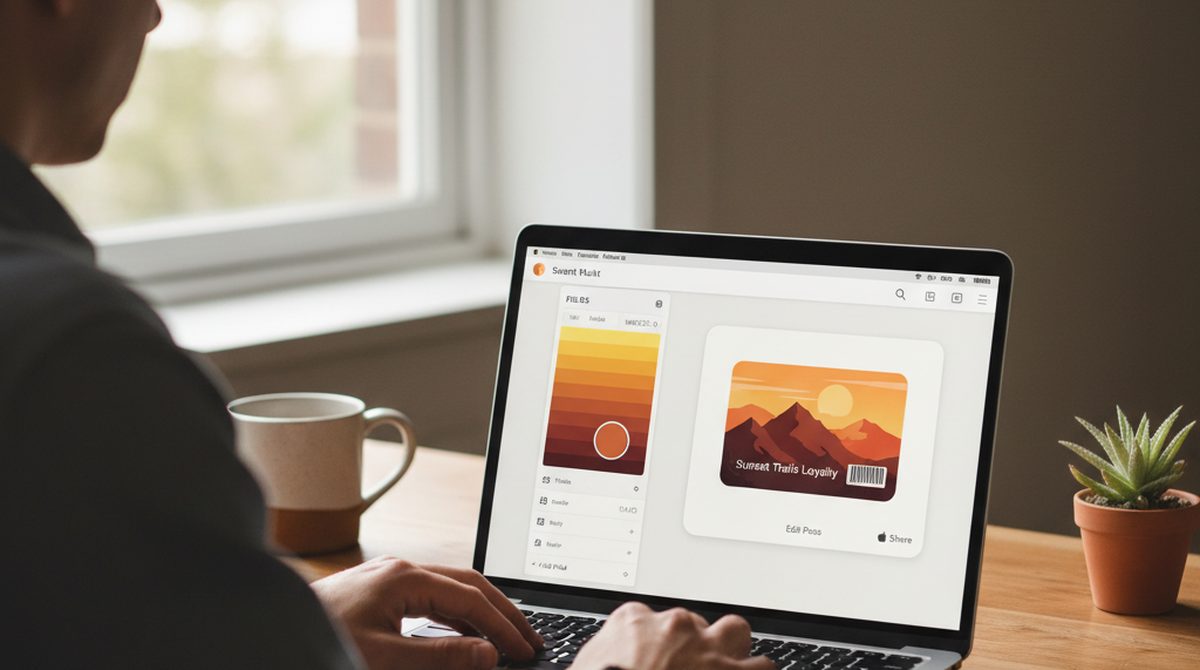
So far we have covered viewing passes someone else issued you. The other half of the wallet-pass story is creating your own — and on Android, this is the same workflow you would use on any platform, because pass creation happens in the browser, not on the phone.
Why would you want to create a pass? Three real examples:
- You run a small yoga studio and want a membership card people can keep in their wallet instead of a paper punch-card.
- You are organizing a private event and printing QR tickets feels outdated — a wallet pass on each guest's phone looks better and is harder to lose.
- You have a paper loyalty card from your local coffee shop and want a digital version on your own phone.
The old way: hire a developer to integrate Apple's PassKit framework or Google's Wallet API. Weeks of integration, a developer-account setup, signing keys, and a few thousand dollars before the first pass exists.
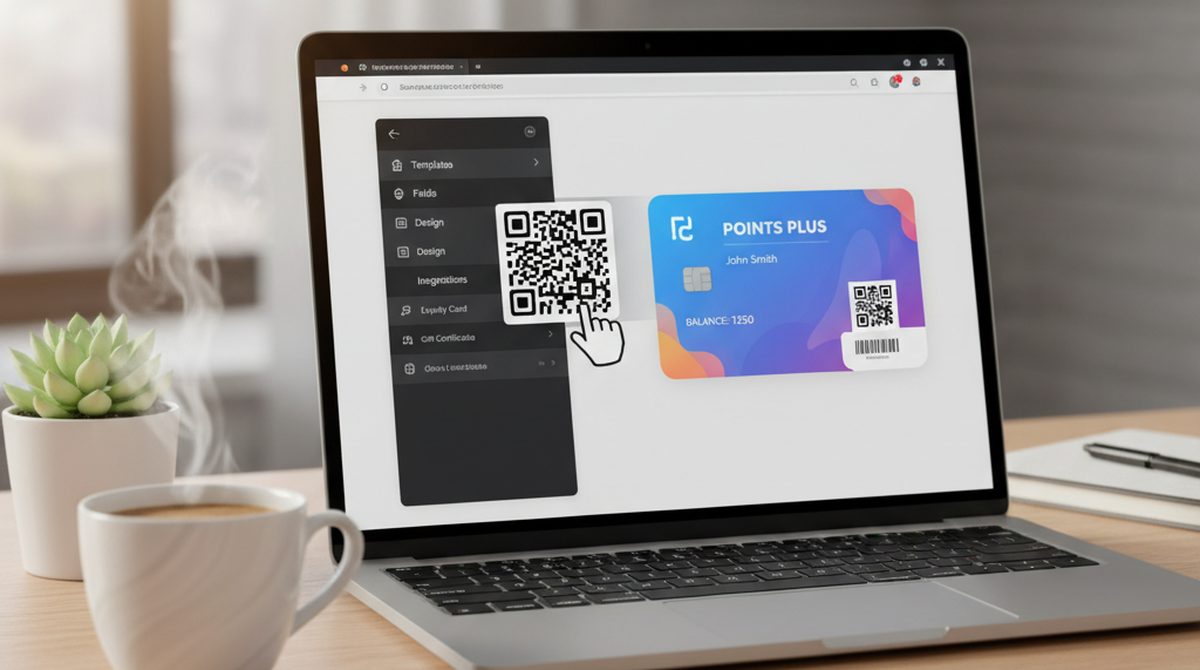
The new way (2026): use a browser-based pass creator like OtterWallet. You upload a barcode or QR image, choose Apple Wallet or Google Wallet format, customize the pass, and download the file. The whole thing runs in your browser — your barcode data is processed client-side and never leaves your device until checkout.
Step-by-step walkthrough
- Go to otterwallet.com on any device — phone, tablet, or laptop.
- Pick Apple Wallet or Google Wallet as the target format. (You can create both from the same source.)
- Upload your QR code, barcode, or image — the tool reads it automatically. Or paste the text/URL the code should encode.
- Customize: pass colors, your logo, the title and field labels (e.g., "Member name," "Expiry," "Studio").
- Download the pass file. On Android, open it with Google Wallet, PassWallet, or WalletPasses, depending on which format you chose.
Pricing note: as of April 2026, a single pass costs €0.99 (roughly $1.05 at current exchange), and a ten-pass bundle is €1.99 (about $2.10). No subscription, no account required, credits are valid forever. (Prices and features current as of April 2026; check otterwallet.com for the latest.)
Try it yourself — create your first wallet pass →
Common Problems and Fixes
"I clicked Add to Apple Wallet on my Android — nothing happens."
Apple Wallet does not exist on Android, so the button has nothing to hand off to. Three options: (a) check whether the same email or page also has a "Save to Google Wallet" button — most modern issuers offer both; (b) save the email and look for a .pkpass attachment, then open it with PassWallet or WalletPasses; (c) ask the issuer for a Google Wallet version.
"The .pkpass file opens in a browser, not a wallet app."
Android sometimes hands .pkpass files to the browser by default. Long-press the downloaded file in your file manager, choose Open with, pick PassWallet or WalletPasses, and tick the "Always" option. Future .pkpass files will route there directly.
"Can I transfer my Apple Wallet passes to my new Android phone?"
Partially. Static passes (loyalty cards, simple event tickets) can usually be re-added by saving the original .pkpass from the issuer and opening it on Android. Dynamic passes (live transit cards, signed boarding passes for trips that already started) generally cannot be transferred because they are bound to the issuing device. For these, contact the issuer for a re-issue.
"Is .pkpass the same as Google Wallet?"
No. They are different formats. .pkpass is a zipped file you open with a reader. Google Wallet passes are JWT-based and added by tapping a "Save to Google Wallet" link. Some issuers offer both; some offer only one. Converters exist but are unreliable for signed passes (boarding passes especially).
"Does Android have a wallet like iPhones?"
Yes. Google Wallet is Android's native equivalent to Apple Wallet. It is pre-installed on most Android phones and supports payment cards, event tickets, boarding passes, loyalty cards, and (in some US states) digital IDs.
"Where can I find my Wallet on my Android?"
Open the app drawer and look for Wallet (Google Wallet) or Samsung Wallet if you have a Galaxy. If you cannot find it, install Google Wallet from the Play Store — it is free.
Use Cases
The frequent flyer
Lisa flies twice a month for work. Her family is split across an iPhone (her partner) and a Pixel (her). When the airline sends boarding passes, she taps "Save to Google Wallet" on the Pixel and her partner taps "Add to Apple Wallet" on the iPhone. The pass surfaces on her lock screen automatically when she gets to the airport. The same airline email handled both phones, no conversion needed.
The small-business owner
Marco runs a coffee shop. He used to print 200 paper punch cards a quarter — most ended up in the recycling bin. He created a wallet pass version on OtterWallet in about ten minutes, exported one for Apple Wallet and one for Google Wallet, and emailed the link to his customer list. Now customers tap their phone at checkout and the punch updates. The cost per customer was roughly €0.10 in the bulk package — versus the printer ink and lost cards he used to absorb.
The event organizer
Nadia is running a 50-person workshop. Instead of emailing PDF tickets that get lost in inboxes, she generates 50 wallet passes — one per attendee — using a script that calls the OtterWallet creator endpoint. Attendees with iPhones add to Apple Wallet, Android attendees add to Google Wallet. Check-in is a single QR scan per person at the door.
The Future of Wallet Passes on Android
Two trends are worth watching in 2026 and beyond.
First, the Apple and Google formats are slowly converging in practice if not in spec. More issuers ship both formats from the same backend, so end users do not have to know which they are using. Expect "Add to Wallet" to become a single button that detects the platform.
Second, Google Wallet has been broadening its API for small businesses. Where in 2023 the platform was largely closed to anyone without enterprise volume, today the developer track is meaningfully more accessible — but still requires real engineering work for full integration. For the small-business case, browser-based creators continue to be the fastest path.
FAQ
Does Google Wallet work with .pkpass files?
Partially. Google Wallet can ingest some passes via conversion or by scanning the embedded barcode, but it does not natively open arbitrary .pkpass files. For full support, use PassWallet or WalletPasses.
What is the best wallet app for Android in 2026?
Google Wallet is the right default — pre-installed, supports the broadest set of issuers, and works for payment cards. Add PassWallet or WalletPasses as a .pkpass fallback. Samsung Galaxy users also get Samsung Wallet, which is worth keeping for Samsung Pay and SmartThings integration.
Can I create a wallet pass without writing code?
Yes. Browser-based tools like OtterWallet let you upload a barcode or QR, customize the pass, and download a .pkpass or Google Wallet pass file in under a minute — no developer account or signing key required.
Is there a free way to add passes to Google Wallet? Yes. Google Wallet itself is free, and adding passes from supported issuers costs nothing. Creating your own passes does have a creation cost (roughly €0.99 per single pass on OtterWallet, less in bulk), because pass signing and Google Wallet API calls are not free.
What is the difference between Google Wallet and Google Pay? In most markets they have merged. Google Pay was the older payment-only brand; Google Wallet is the broader pass + payment app. The standalone Google Pay app was retired on June 4, 2024, in the US and 180+ other countries, and existing users were migrated to Google Wallet automatically. Singapore and India are notable exceptions where Google Pay still operates as a separate app.
Will my old Apple Wallet passes work on Android? Static passes usually do, via PassWallet or WalletPasses. Live or signed passes (boarding passes, transit) often do not, because they are tied to the issuing device. For these, ask the original issuer to re-issue.
Start Using Wallet Passes on Android — Today
The Android wallet-pass story in 2026:
- Google Wallet for daily use — supported issuers, payment cards, transit, lock-screen access.
- PassWallet or WalletPasses as a
.pkpassfallback for the files Google Wallet will not open. - OtterWallet when you want to create your own pass — no developer, no subscription, ready in under a minute.
Your wallet, finally on the phone you actually own.
Create your first wallet pass →